Showing posts with label Migration. Show all posts

Sunday, September 26, 2010

Part 2 of 3 (LAB) - Forest Active Directory & Exchange Migration

Exchange Migration, Exchange Server Migration - (Retaining SID History)

The below lab follows on from "Part 1 Active Directory Migration ADMT". All user accounts have now been migrated from source domain Silverwater.local the to destination Rhodes.local.

This part of the migration focuses upon the mailbox migration. For this step we plan to use the Microsoft Exchange Server Migration Wizard (MAILMIG.EXE). Using this wizard simplifies the migration and ensures each migrated user receives their full mailbox. The alternative approach would be to export \ import PST file from source to destination Exchange Servers, which would be a time consuming and without scripting a manual process.


Earlier in the migration chose to retained the users SID,  doing so now allows us align the source mailbox with the destination user account across the separate forests. Note if the user SID was not migrated with the user acount across the forests then this process would not allow us the link the mailbox with the user account (as shown in step 5), therefore the only option would be leverage the Exmerg tool.

You can only migrate mailboxes from the source server if the source server is not part of the same Exchange 2003 organization as the server that is running the Migration Wizard.

What is the difference between Intraorganizational- and Interorganizational Migration?

Intraorganizational migration: The mailboxes will be migrated between Exchange Servers in ONE Exchange Organization.

Interorganizational migration: The mailboxes will be migrated between Exchange Servers in DIFFERENT Exchange Organizations.

The below lists the steps involved in migrating mailboxes from Silverwater.local to Rhode.local.au

You can start the Migration Wizard by clicking Start – Microsoft Exchange – Deployment – Migration Wizard (MAILMIG.EXE).

1. Run the Exchange Server Migration Wizard from the Rhodes Exchange Server
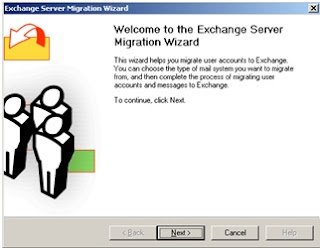
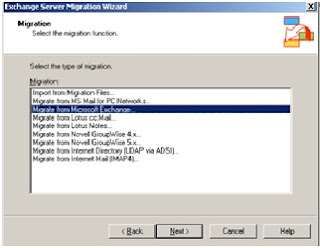
2. The Migration Wizard supports the migration from several different mail systems, for this migration we will chose migration from Exchange to Exchange
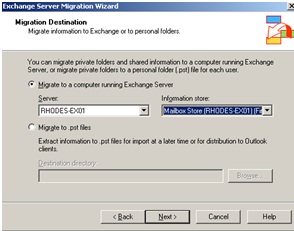
3. Select the Information Store on the destination exchange server (rhodes)
 
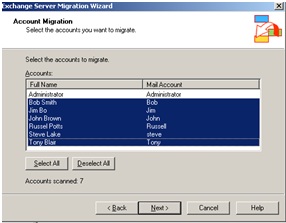
4. Select the (source) accounts that are to be migrated
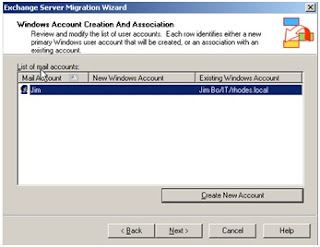
5. Select the (destination) user account we migrating. Th will be and existing account migrated using the ADMT. By retaining SID information will be able to migrate to an existing account.
The next step now is to ensure when the user login into Rhodes.local they receive the newly migrated mailbox.

Saturday, September 25, 2010

Part 1 of 3 (LAB) - Forest Active Directory & Exchange Migration

Active Directory Migration ADMT (Retaining User SID)

The goal of this blog is the detail the lab I created to help me setup and test the Microsoft ADMT (Active Directory Migration Tool) and then alignn this with the Microsoft Exchange Migration wizard.  As shown in the below digram we have 2 separate domains Rhode.local and Silverwater.local, the aim is to migrate all user accounts followed by thier mailboxes.


AD Forests
Both domain have a single Domain Controller and Exchange Servers. Secondary DNS zones have been configured for each domain and a 2-way Forest Trust is in place.

The migration is seperated into 3 stages. 

1. How to migrate users using ADMT and retain user SID's?

2. How to migrate mailboxes and align them to the migrated accounts?

3. How to change user clients outlook profile to the migrated mailboxes?

This blog will focus on migrating all user accounts using the Microsoft Active Directory Migration tool (ADMT). ADMT provides an effective tool that simplifies the process of migrating users, computers, and groups to new domain.

We will retain users SID's during the migration, this is important for phase 2 mailboxes migration. This will ensure once we come to the mailbox migration we can associate the mailboxes with the migrated user IDs.

Security Identifier (commonly abbreviated SID) is a unique name ) which is assigned by a Windows Domain controller during the log on process that is used to identify a subject, such as a user or a group of users in a network of NT/2000 systems.

The following steps must  be configured before installing ADMT:
a)     DNS must be configured on both Domain controllers. This step is critical in getting the trust to work. On both opposing  domains a new secondary DNS zone will be added for each domain name.
b)     Once the secondary zones have been added, the “Zone Transfer” setting must be changed to allow replication of zones to each domain. Simple allow unrestricted zone transfers as both domains are considered trusted.
c)      Create 2-WAY Transitive trust been both domains.  
Once the infrastructure is complete, the following steps are used to migrate user accounts across the forest.

 1. Run ADMT from Rhodes AD1


 2.  Select the users to migrate


 3.  Retain SID History


At this point all users from the Silverwater Domain  have been imported in the Rhodes domain whilst retaining their SID history.


The next step is to migrate the mailboxes....

References:

Active Directory Migration Tool (ADMT) v3.0 Migration Guide

http://www.microsoft.com/downloads/details.aspx?familyid=B1F816C0-4E2B-4E5D-B256-1AC304062367&displaylang=en